> For the complete documentation index, see [llms.txt](https://conservation-x-labs-1.gitbook.io/sentinel-docs-english/llms.txt). Markdown versions of documentation pages are available by appending `.md` to page URLs; this page is available as [Markdown](https://conservation-x-labs-1.gitbook.io/sentinel-docs-english/sentinel-setup-and-deployment/deploy-your-sentinel.md).
# Deploy Your Sentinel
We do recommend to practice the entire workflow in a controlled environment first!
{% hint style="warning" %}
**We do recommend to practice the entire workflow in a controlled environment first!**
{% endhint %}
#### A) Prepare your Sentinel - please carefully read [this section](/sentinel-docs-english/sentinel-setup-and-deployment/prepare-your-sentinel.md)
Strap the Sentinel and the camera trap to a tree:
Note, the Spypoint cable is not yet connected to the trail camera. Sentinel and trail camera have to be close enough together so they can be connected via the cable
***
#### B) Prepare your trail camera and connect to Sentinel - please careafully read[ this section](/sentinel-docs-english/sentinel-setup-and-deployment/prepare-your-trail-camera.md)
At this point you're setup should look smth like this, where you Sentinel is connected with the trail camera:
{% hint style="warning" %}
We recommend that you format the SD card through the camera trap menu before deploying the Sentinel. This ensures that you only process images that are relevant to the deployment.
{% endhint %}
{% hint style="info" %}
Be careful not to delete any images that are relevant to the deployment through formatting the card. The Sentinel only periodically transfers images to its microSD card. If you have deployed a Sentinel with an SD card in the past, some images might not have been transferred to the Sentinel.
{% endhint %}
***
#### C) Execute Setup Mode (while keeping your Sentinel open)
This process helps to:
* **Verify the connection of Sentinels to satellite/cellular/LoRa networks**
* **Functioning connection between the camera trap and the Sentinel**
{% hint style="warning" %}
#### This process can vary between different versions of the Sentinel sotware. Reach out to **** to confirm which software version you're using.
{% endhint %}
The following is a description of a process that will also work for older versions of the Sentinel firmware. The example is for a cellular Sentinel. The procedure for LoRa is similar.
At the beginning, both the Sentinel and the camera trap are switched **OFF**. Both the [Sentinel ](#a-prepare-your-sentinel-please-carefully-read-this-section)and the [camera trap](#b-prepare-your-trail-camera-and-connect-to-sentinel-please-careafully-read-this-section) are prepared and connected.
{% embed url="" %}
1. Connect Sentinel to camera trap. You can skip this part as you should already have followed the procedure [here](#b-prepare-your-trail-camera-and-connect-to-sentinel-please-careafully-read-this-section)
2. Switch on the camera trap (format SD card if there are lots of images you don't need anymore)
{% hint style="info" %}
Formattting the SD card is important to not overlaod the Sentinel with old images
{% endhint %}
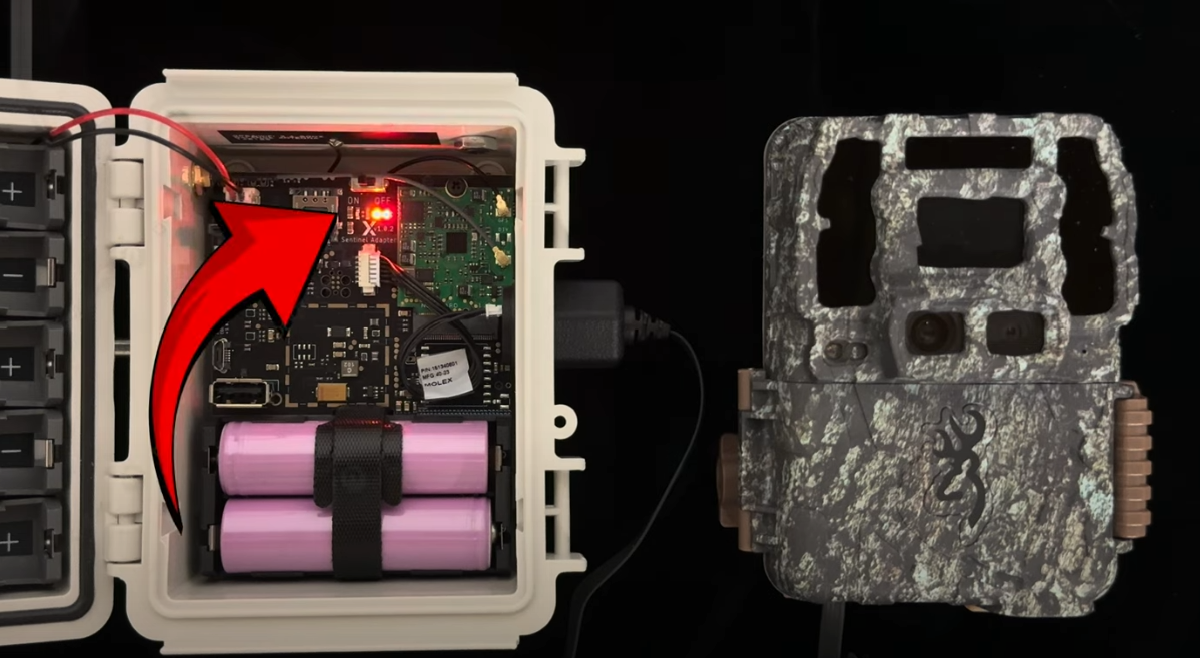
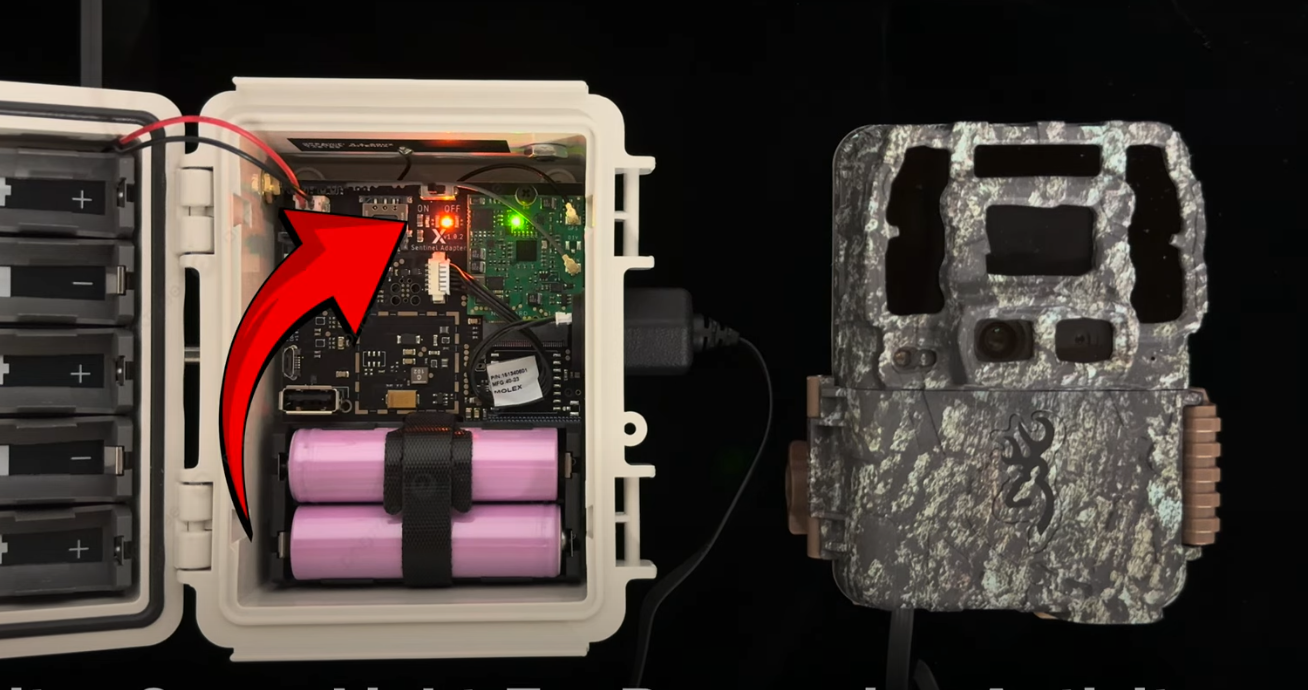
**3a. For old version only (potentially skip)****:** Enter the menu (M) of the trail camera and power on the Sentinel. Wait for the two concurrent lights to switch off (around 0:31 in video), and the singular red pulsating light to appear (around 0:32 in video):
Exit the trail camera menu (M) and close the trail camera door. For maxumim success follow instructions here on how to close the door.
**3b. For new version only****:** Close the camera trap door as described here and switch on the Sentinel
4. When the red pulsating light appears (around 0:32 in video) you can start triggering the camera trap. Quickly flashing red lights followed by orange lights means the Sentinel is registering the trail camera triggers (around 0:52 in video). **This does NOT yet confirm a fully functional connection between Sentinel and trail camera.**
{% hint style="info" %}
We recommend that you trigger the trail camera repeatedly during this stage. This is to ensure that the Sentinel has images to process! Ideally, on some images the Sentinel detects a 'human', which - if enabled - will be send as an alert to your dashboard.
{% endhint %}
5. Confirm cellular connectivity: At some point, two concurrently blinking ligths (red & orange) will appear (at around 1:09 in the video). At this point, you can still trigger the trail camera. However, **to conclude the process you will have to stop triggering the trail camera at this point.**
{% hint style="danger" %}
**Avoid triggering the trail camera at this point. Triggering the trail camera at this point will cancel all subsequent steps.**
{% endhint %}
The Sentinel has a confirmed cell connection when the 2 concurrently blinking lights stop pulsating, which in the video is right before the image processing starts (around 1:52):
6. Confirm successful image transfer and processing through green lights (from 2:04 in video). **Only the green lights confirm a fully functional connection between the Sentinel and the trail camera.** A slow blinking green light means that images are being transfered from the trail camera to the Sentinel (from 2:04 in video). Fast blinking green lights indicate processing of the images by the AI model (from 2:09 in video).
{% hint style="danger" %}
If the green lights behave differently than in the video or if they don't appear this indicates a faulty connection between the trail camera and the Sentinel.
{% endhint %}
{% hint style="danger" %}
As mentioned before: do not trigger the trail camera during this process!
{% endhint %}
7. Once the Sentinel returns to deep sleep (from 2:40 in video), close the door and walk away.
{% hint style="info" %}
Deep sleep is shown by a red heartbeat light every \~10 seconds. Check out more LED light meanings [here](/sentinel-docs-english/getting-started/technical-specifications/sentinel-led-light-guide.md).
{% endhint %}
Good luck!
**Notes:**
We highly recommend you test the entire procedure in a controlled envornoment first! If you run into problems, repeat steps [here](#a-prepare-your-sentinel-please-carefully-read-this-section), [here](#b-prepare-your-trail-camera-and-connect-to-sentinel-please-careafully-read-this-section) and on this page or refer to our [troubleshooting guide](/sentinel-docs-english/sentinel-setup-and-deployment/deploy-your-sentinel/troubleshooting-common-issues.md). As a last resort, feel free to reach out to: . You can repeat the process described above several times.
On older Sentinel version you need to enter the camera trap menu (before switching on the Sentinel) to trigger the full process decribed above. On newer versions, simply switching on the Sentinel will triger the process. In either case, we recommend switching on the camera trap before the Sentinel.